

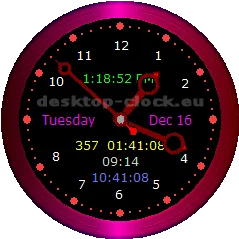
Desktop Clock 2.9, a classic, highly customizable Windows desktop clock software utility with voice time announcement, rss reader.
It designed to place on pc window's desktop.
High Customization: Allows full visual control over the interface, enabling you to change colors, fonts, and sizes to match your background theme and more...
Key Features: Female or male reading voice, RSS reader, daily planner, options to shut down the PC after a specific time or at a specific time and more...
Example Voice Announcement
You can choose between female or male voice.
Male Voice
Features
Key features and settings of the clock.
Start-up position
Place clock anywhere on your desktop using vertical and horizontal sliders
Window Transparancy
Value from 0 to 100. It allows you to adjust the clock's transparency, ranging from fully visible to completely invisible.
Desktop clock's Window on Top
It allows you to set the clock's visibility so that it remains constantly visible, regardless of which program is in the foreground.
Time Voice Announcement
Choose between the nice voice of a female or male, set repeat time [every 1,5,10,15,30,60 minutes]
Countdown Timer to Shutdown Pc or Log OFF from System
You can set the minutes or set exact time to turn off or log off from Windows. The Time can be set and observed in the desktop clock main window.
Chime and Visual Effect on the Hour
Choose from 12 different chimes and 12 visual effects.
Desktop Clock Daily Planner
Set time and date, title, description and sound to notify you about important things to do.
You can add up to 100 notifications. Desktop Daily planner can work as a computer alarm clock.
Desktop Clock Countdown Timer to the Future Date
Set time and date in the future and clock show you how long you have to wait until the time and date will occur.
Countdown timer can be observed in the clock window.
Countdown Timer counts down the days, hours, minutes and seconds to your specific date like important events, births, weddings, prom or millennium.
Desktop Clock PC Work Time
how long system is working since start-up. It can be observed in the desktop clock main window.
Hide or show Main clock Window
Just right click on desktop clock icon in the system tray and choose Hide Clock or Show Clock.
Quick Today's Date
Right-click the clock icon in the system tray, then select "Today's Date," and an old-fashioned calendar page will appear.
display Font Settings
Set font type, font style and font size to configure desktop clock main window.
Seconds
Set seconds style and colour and also set laser effect
Quick menu
Right click desktop clock icon in the system tray brings you following desktop clock shortcuts:
"The Clock Control Panel", "Hide the Clock", "Daily Planner", "Today's Date"
Desktop Clock Digital Time
Set digital time ON or OFF, displayed in the main window also you can change the colour and appearance in relation to the desktop clock hands.
Desktop Clock Hands Settings
Choose between different types of desktop clock hands and set their colour. Set second hand ON or OFF.
Frame, Desktop Clock Style, Background, Digits
Desktop Clock Frame, Desktop Clock Style, background, digits - choose between different types of Desktop Clock frames,
styles and colour, change Desktop Clock colour background.
Hide Desktop Clock Window
You can hide or show the desktop clock window by clicking the right mouse desktop clock icon in the system tray and selecting "Hide Clock" or "Show Clock".
Saving Clock Settings
When exiting the clock control panel, you will be prompted to save the settings or discard them.
Date Settings
Set colour of the date displayed in the desktop clock window. Choose between short or long date format.
Desktop Clock RSS Feeds Player
The clock features a dedicated RSS player tab. You can add or remove up to 50 RSS feeds.
When the player is active, a horizontal scrolling news ticker appears; you can position it anywhere on the screen and customize the speed, font type, style, and size.
Additionally, the player can automatically fetch RSS feeds at intervals of 15 minutes, 30 minutes, or 1, 2, or 4 hours.
It is an excellent tool for keeping up with the latest news.
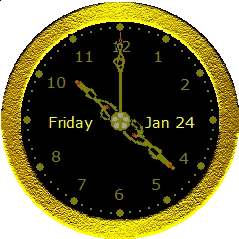
Gallery
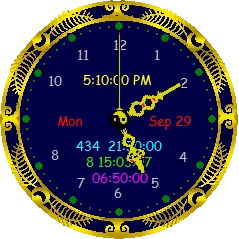
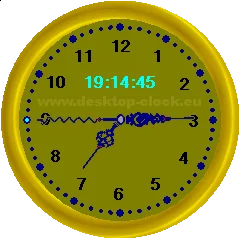
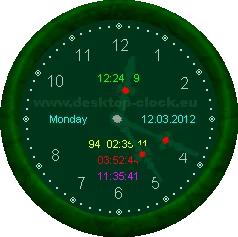
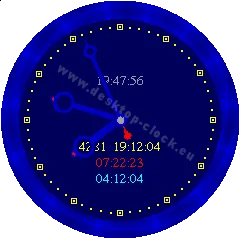
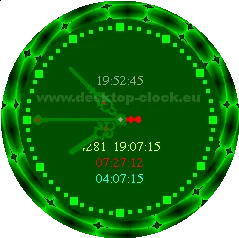
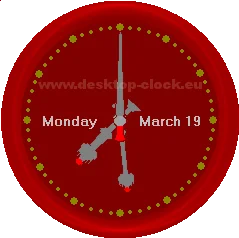
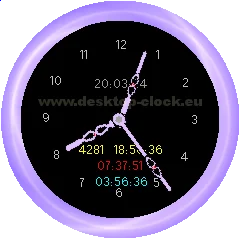
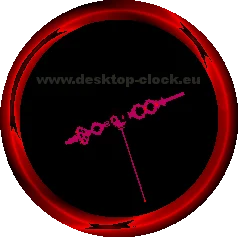
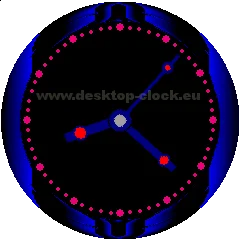
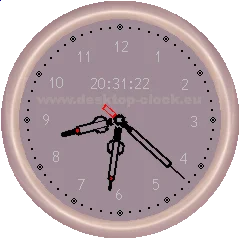
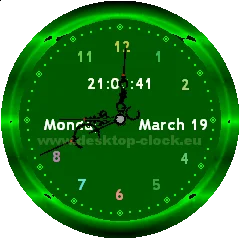
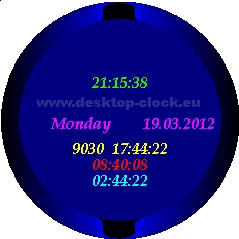
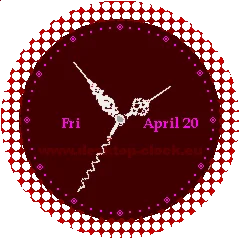
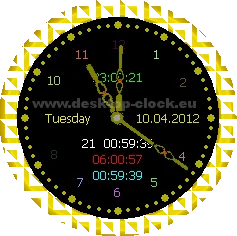
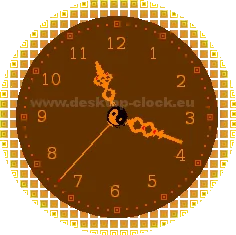
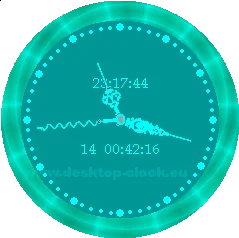
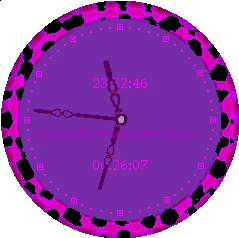
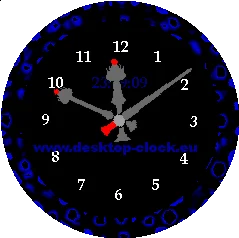
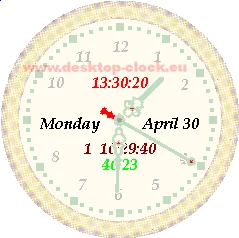
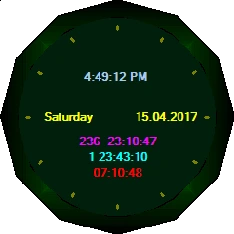
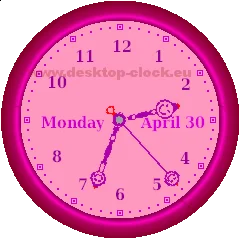
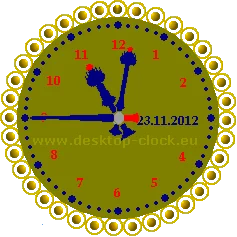
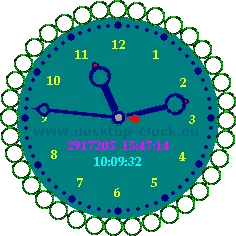
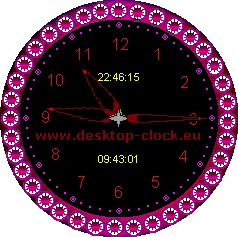
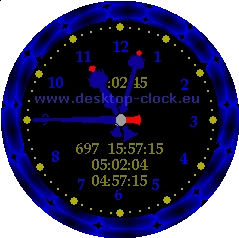
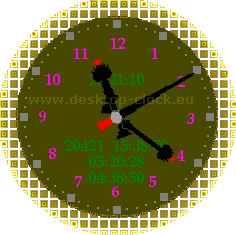
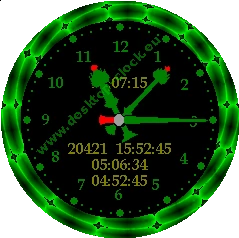
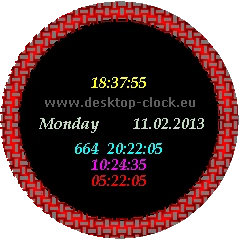
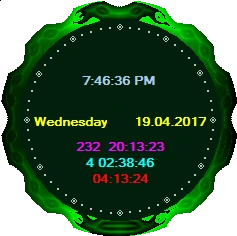
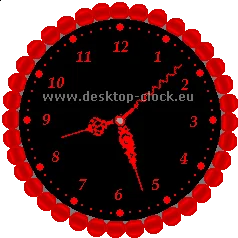
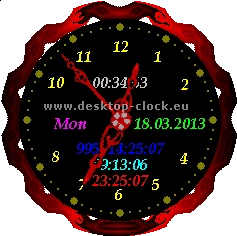
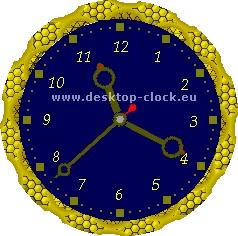
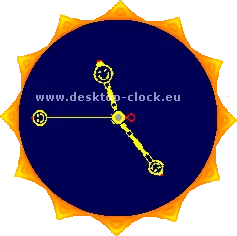
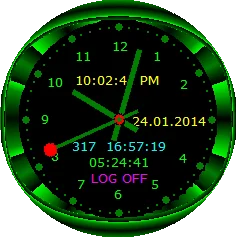
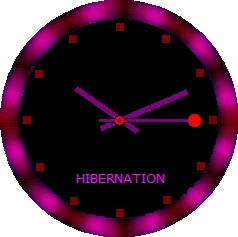
Some examples of the main clock view that you can set
Download
This is main source for download Desktop Clock 2.9
FAQ
Frequently asked questions from users
Is this website the main source for downloading the Desktop Clock 2.9 ?
+
Yes, this is the main source for downloading the Desktop Clock 2.9. The author spent 3 years coding to create it.
When trying to install the program, a blue box appears with the message "Publisher cannot be verified" and "The app is unsigned." What does this mean?
+
The short answer: the Desktop Clock 2.9. installer isn't digitally signed with a certificate.
This is common for small, independent programs that don't purchase expensive certificates which must be renewed every year.
Missing signature doesn't mean there's a virus. If you are downloading Desktop Clock from the official website, the message can be safely ignored.
How to bypass the message? In the SmartScreen window: 1.Click "More info" 2. Select "Run anyway". The installation will then proceed normally.
How to bypass the message? In the SmartScreen window: 1.Click "More info" 2. Select "Run anyway". The installation will then proceed normally.
How to open the clock control panel?
+
There are two ways to open the clock control panel. The first involves hovering the mouse over the clock display, which reveals two buttons: "Panel" and "C".
Clicking "Panel" opens the settings, while the "C" button closes the clock.
The second way to open the settings panel is to right-click the icon in the system tray and select "Control Panel" from the menu.
The second way to open the settings panel is to right-click the icon in the system tray and select "Control Panel" from the menu.
Do I get the fully functional version after installing the clock?
+
No, 2-week trial with limited features.
The Desktop Clock 2.9 has a built-in RSS player. What is it, and what is it used for?
+
RSS (Really Simple Syndication ) is based on XML technology, extremely fast and easy way to receive information (headers and the content) from multiple Web sites simultaneously.
Instead of visiting individual pages, you can use your RSS reader to receive the latest information from websites that provide RSS subscription.
RSS feeds is slightly similar to the form of a newsletter, with the difference that streams news feeds are provided to you when they are published on the website,
and not once a day or even not once a week, as is the case for the newsletter.
Additionally, for better identification of the channels, in addition to the text, RSS news streams also contain thumbnails of images attached to the Rss message.
Any information presented in RSS must correspond to a certain structure and not every RSS document on the Internet meets such a standards.
Use free RSS validators to check correctness of the RSS document. Desktop clock has been made for RSS feeds standard structure.
While using "desktop clock rss feeds feature" you can have latest information in your desktop, from following example rss feeds: Latest news and weather for your city, Sports news, Latest news from the world of celebrities, Business, Health, Technology & Science, Horoscope, Latest lottery winning numbers, Stock-exchange listing, Latest currency rates, Opinion, Marketplace and many more.
While using "desktop clock rss feeds feature" you can have latest information in your desktop, from following example rss feeds: Latest news and weather for your city, Sports news, Latest news from the world of celebrities, Business, Health, Technology & Science, Horoscope, Latest lottery winning numbers, Stock-exchange listing, Latest currency rates, Opinion, Marketplace and many more.